Prepare your CSV data
Prepare a manufacturing CSV for label printing. Preserve leading zeros, check quantities and dates, and use the SmartFACT sample file as your starting point.
CSV TO PRODUCTION LABELS
Take a works order from a CSV file to a label preview, with the customer’s product code, purchase order and batch in place.
Using Excel? Export your sheet as CSV first.
The current importer uses a defined manufacturing profile.
WORKS ORDER
WO-12345INT-00017AC-00017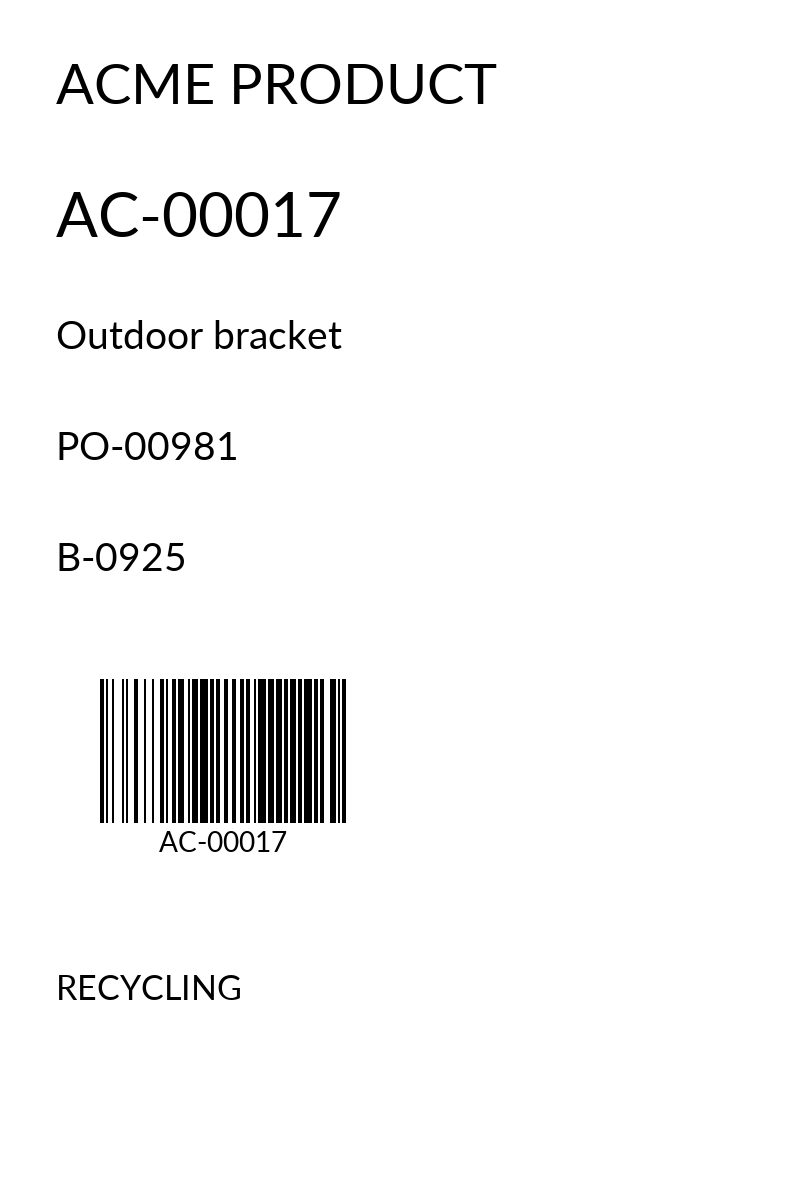
FOLLOW THE EXAMPLE
The sample contains an order for three outdoor brackets. The product’s internal code is INT-00017. The configured customer mapping resolves it to AC-00017 for Acme’s label.
The mapping is part of the saved configuration. It is not guessed from the spreadsheet.
Open the example label PDF| Field | Sample value |
|---|---|
job_reference | WO-12345 |
customer_code | ACME |
product_sku | INT-00017 |
product_name | Outdoor bracket |
quantity | 3 |
purchase_order | PO-00981 |
batch_code | B-0925 |
The downloadable file contains all required columns. Every company, order and product in this example is fictional.
GET YOUR DATA READY
Match your export to the supplied manufacturing columns. Arbitrary spreadsheet column mapping and direct Excel workbook uploads are not available in this version.
Check leading zeros before exporting from Excel. A code that has already lost its zeros cannot be reconstructed reliably by the importer.
The importer validates the complete file. Open the imported job, prepare the label and inspect the preview before accepting a print run.
A FEW PRACTICAL QUESTIONS
Export a UTF-8 CSV from Excel first. The current importer accepts CSV using the documented manufacturing profile, rather than .xlsx files.
No. The required headings, types and identifiers must match the profile. Download the complete example and discuss your source data with us before planning an import.
No. Importing records the job data. Label preparation, preview review and acceptance are separate steps. Attended physical printing also requires a configured and checked QZ Tray workstation.
The current example uses a standard Code 128 barcode. GS1-128, SSCC allocation and regulated label workflows are outside this early-access profile.
LET’S START WITH YOUR WORKFLOW
Tell us about your data, customer requirements and printer. We’ll help you assess whether SmartFACT Labels fits.